
🔧 How to Enable Dockable Mode
To enable dockable mode on your existing Ask AI widget:1. Go to the My AI Agents Page
Log in at platform.dappier.com and navigate to My AI Agents.2. Select Your AI Agent
Choose the agent you want to configure.3. Click the Ask AI Tab
In the agent editor, open the “Ask AI” tab to view your widget configuration options.4. Go to Dockable Configuration Settings
Within the Ask AI tab, under Configuration Settings, click on the “Dockable” sub-tab.
5. Customize Dockable Settings
Adjust the following options to configure your dockable experience:Enable Dockable
Toggle this on to activate dockable mode. This will display a floating Ask AI icon on your site.Show Inline Widget
Toggle this on if you also want the Ask AI widget to appear inline on your page. Turn it off to display only the dockable version.Trigger Prompts Open Dockable Widget
Enable this to allow suggested prompts to automatically open the dockable widget and display responses there.Dockable Container Width (Desktop)
Set the width of the expanded dockable widget on desktop devices (default is 380px).Dockable Icon Position
Choose where the icon appears: bottom-right or bottom-left.Offset Height (px)
Add a vertical pixel offset if needed to prevent overlap with sticky footers or other site elements.6. Update your widget
Click Update Widget to apply your settings. Once updated, you’ll see the dockable icon appear on your site—typically in the bottom-right or bottom-left corner depending on your configuration.📷 Example Dockable Widget in Action
The dockable icon will appear as a floating chat button that, when clicked, opens the chat container overlay on your page.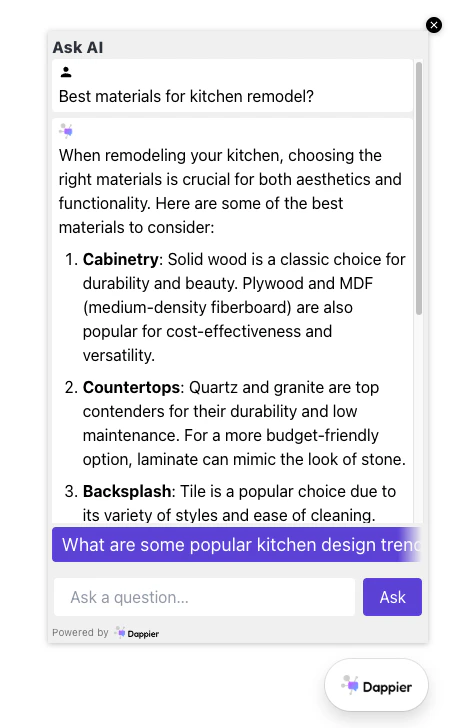
💡 Pro Tips
- Dockable widgets work great on both desktop and mobile.
- Disabling the inline widget is ideal when you want a cleaner layout or when space is limited.