

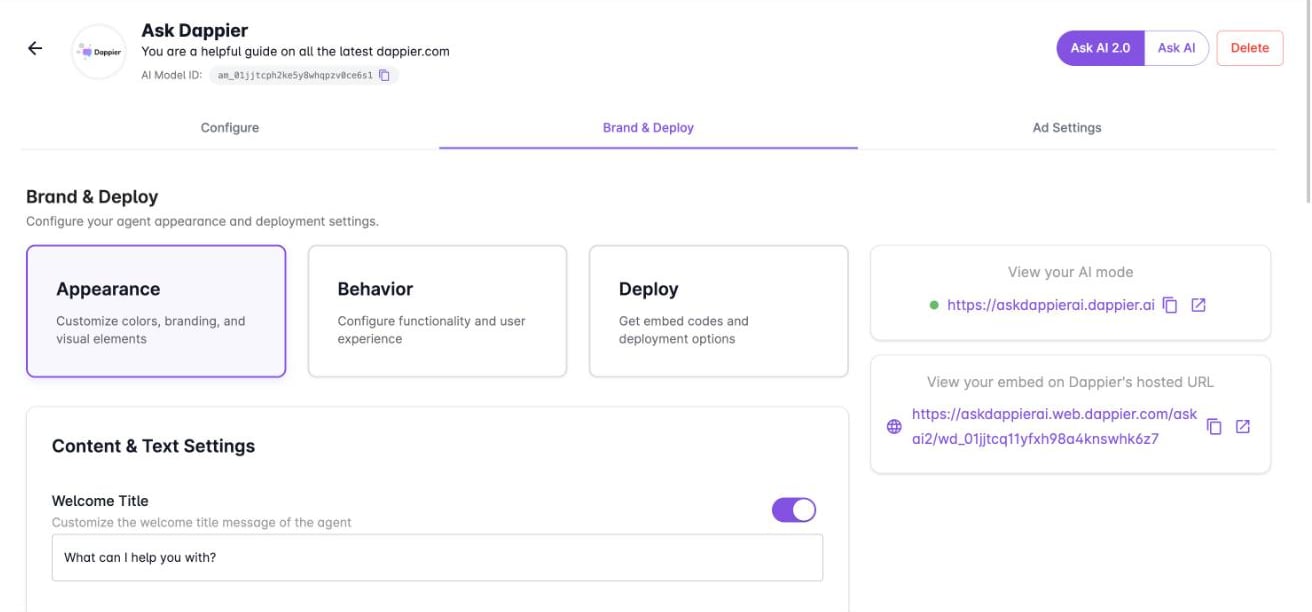
Ask AI 2.0 is white labeled, so the agent your readers see carries your text, logo, and colors. You control this from the Brand & Deploy tab of your agent, which has three sections: Appearance, Behavior, and Deploy. This page covers the first two. For embed codes and hosting, see Deploy Ask AI. To get there, open My AI Agents, select your agent, make sure Ask AI 2.0 is selected at the top right, and select Brand & Deploy. Select Update Agent after any change to save it.

Appearance

Brand and Deploy tab with the Appearance section selected, showing content and text settings

Content and text settings

Branding and theme

Behavior

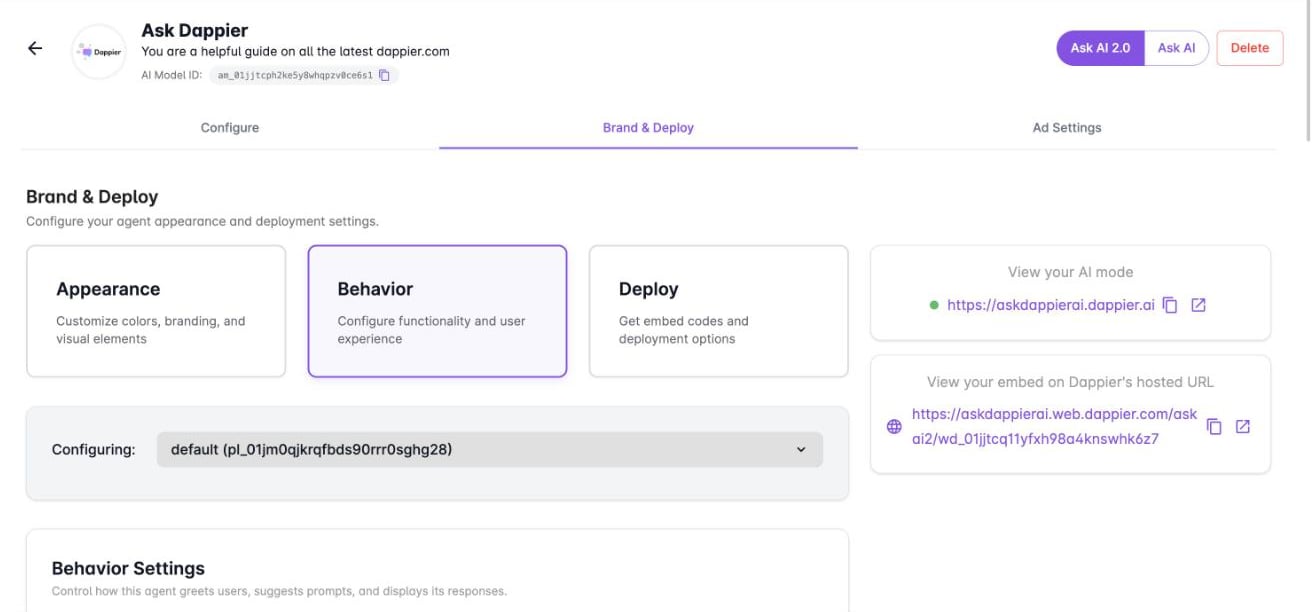
Behavior settings control how the agent greets users, suggests prompts, and displays its responses. The Configuring menu at the top of the section shows which placement you are editing. Brand and Deploy tab with the Behavior section selected
More behavior sections

Below the main settings, expand any of these sections to configure it.
The individual options inside these sections are still to be documented here. Open each section in the platform to see its current options.